
Password, two-step sign-in and deleting your account
Reset a password, turn on an authenticator app and remove your data.
Everything in this article lives on the Account & Billing page, under "Security & Authentication".
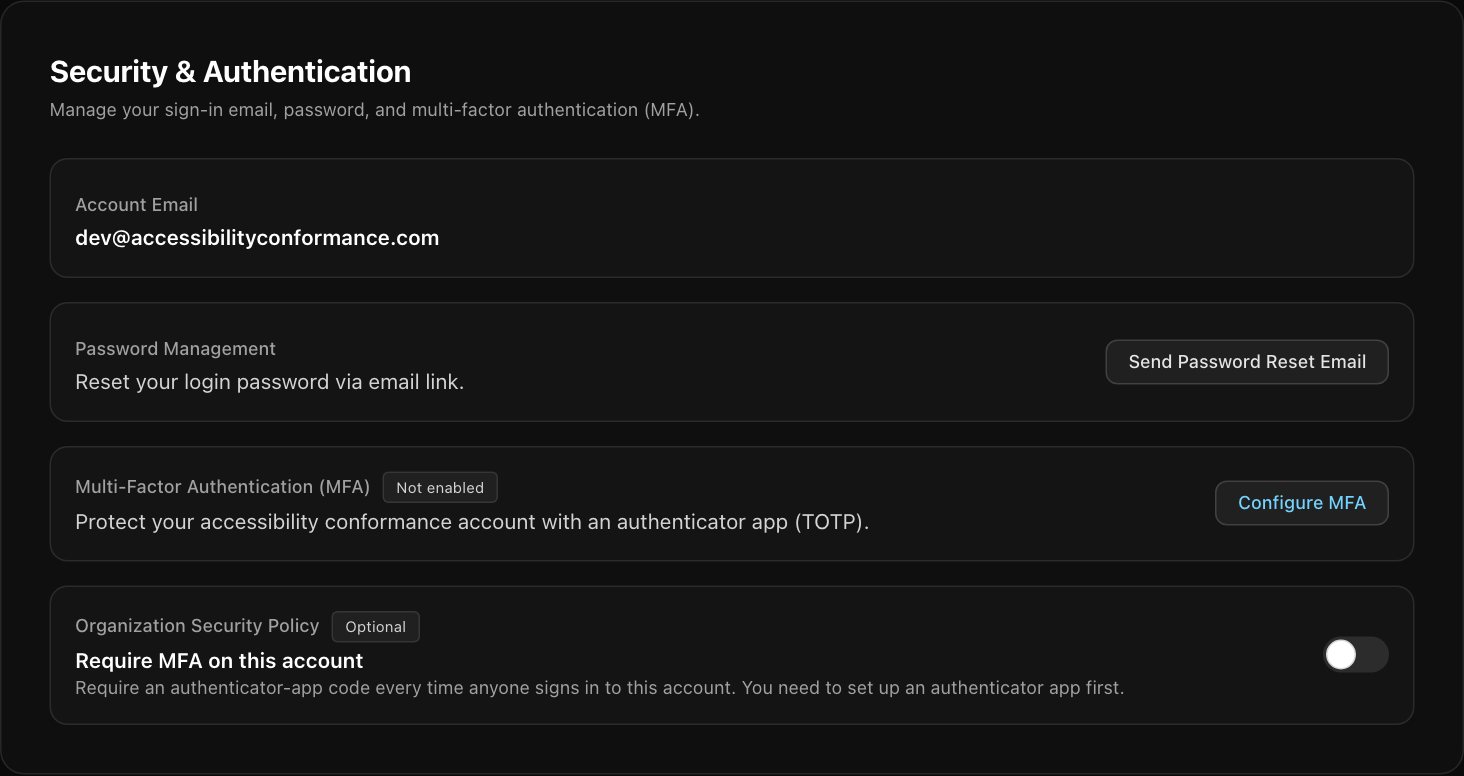
Reset a forgotten password
- On the sign-in page, select the forgot password link and enter your email address.
- Open the email we send. The link goes to this website, not to a third party.
- Enter and confirm a new password. When it is saved, you return to the sign-in page.
If you are already signed in and want to change your password, select Send Password Reset Email on the Account & Billing page and follow the same steps. The link can be used once and expires after a while. If it has expired, ask for a new one.
Turn on two-step sign-in
Multi-factor authentication (MFA) asks for a six-digit code from an authenticator app each time you sign in, in addition to your password. Use any authenticator app, such as one built into your password manager.
- Select Configure MFA.
- Follow the steps to add the account to your authenticator app and confirm with a code.
- The status changes from "Not enabled" to enabled, and we email you to say that MFA was added.
To protect every person in your account, the owner can turn on Require MFA on this account. Once it is on, anyone who signs in to the account needs an authenticator code. Set up your own authenticator first, because you cannot switch the requirement on without it.
Security notices
You receive an email notice when your password, your email address or your MFA settings change. If you did not make the change, reset your password straight away and contact us.
Delete your account

Delete Account permanently removes your account, your monitored sites, their scan histories and your generated reports. It cannot be undone. If you have a paid subscription, we cancel it first. If the cancellation fails for any reason, the deletion stops so you are not left paying for an account that is gone.
Only the account owner can delete an account. If you only want to stop scanning a site, use Pause or Remove on the site instead.
For what we store and for how long, see the Privacy Policy.
Still stuck? Contact us with your site address and what you expected to happen.