
Invite your team
Viewer and Editor roles, seats and what each person can do.
The Pro plan includes 3 seats, counting you as the owner, so you can invite two people to work in your account. Everyone on the team shares your plan and your pool of monthly scans.
Choose a role
| What they can do | Viewer | Editor | Owner |
|---|---|---|---|
| View sites, results and reports | Yes | Yes | Yes |
| Start scans and set schedules | No | Yes | Yes |
| Add sites, pause and activate sites | No | Yes | Yes |
| Mark fixes, generate VPATs, publish statements | No | Yes | Yes |
| Remove sites | No | No | Yes |
| Manage team, billing, security and the account | No | No | Yes |
Choose Viewer for stakeholders who only need to read results, and Editor for the people doing the fixing.
Invite someone
- Open Account & Billing and find "Team Members".
- Enter their email address, pick Viewer or Editor and select Send Invite.
- They receive an email with a link. They sign in, or create an account, with the address you invited and accept the invitation. An invitation only works for the address it was sent to.
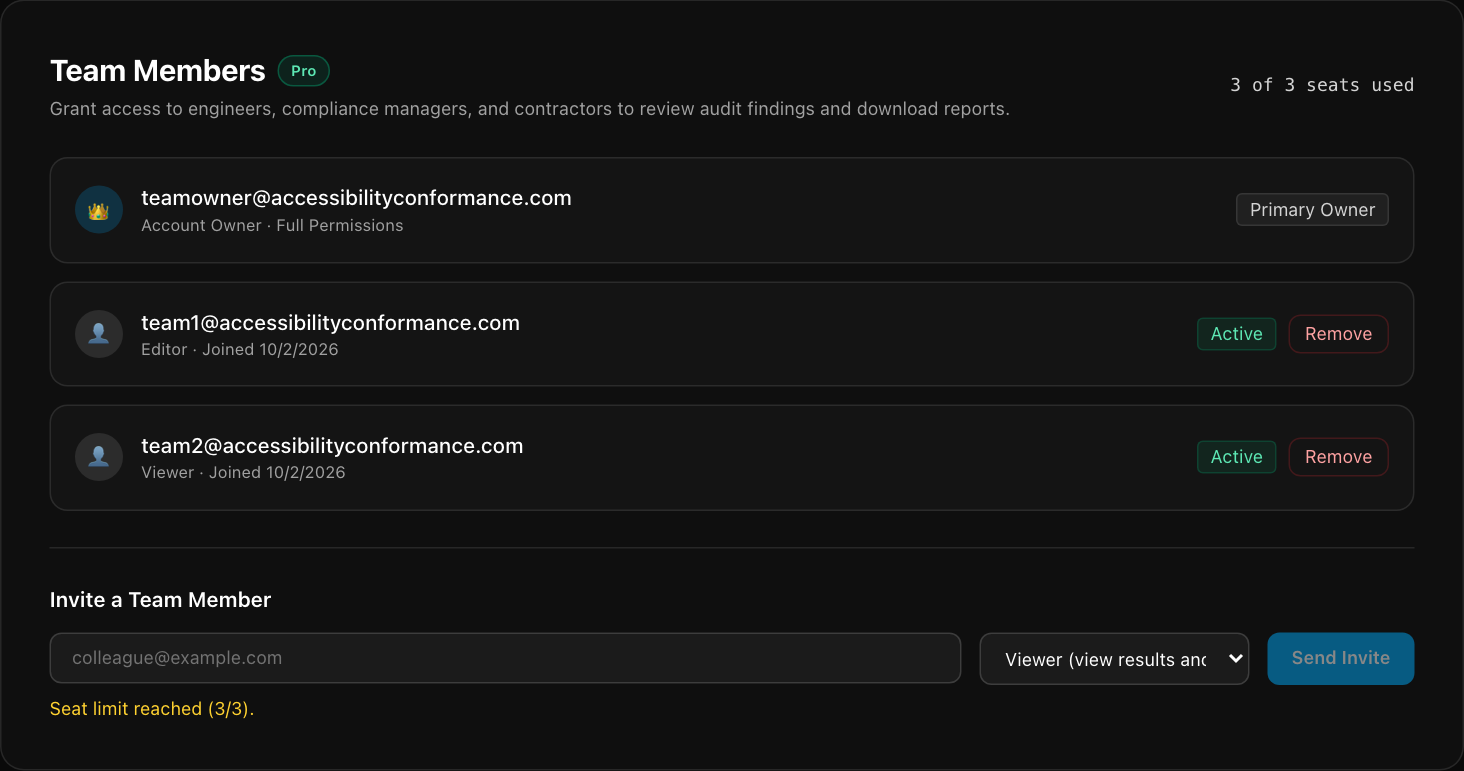
When you have used every seat, the invite form tells you the seat limit is reached. Select Remove next to a person to free their seat.
If you were invited
Sites you can access through someone else's account appear under "Shared with you" on your dashboard. If you are an Editor, you can choose that account when you add a site. Plan limits, such as the number of sites and scans, are those of the account owner.
Still stuck? Contact us with your site address and what you expected to happen.